
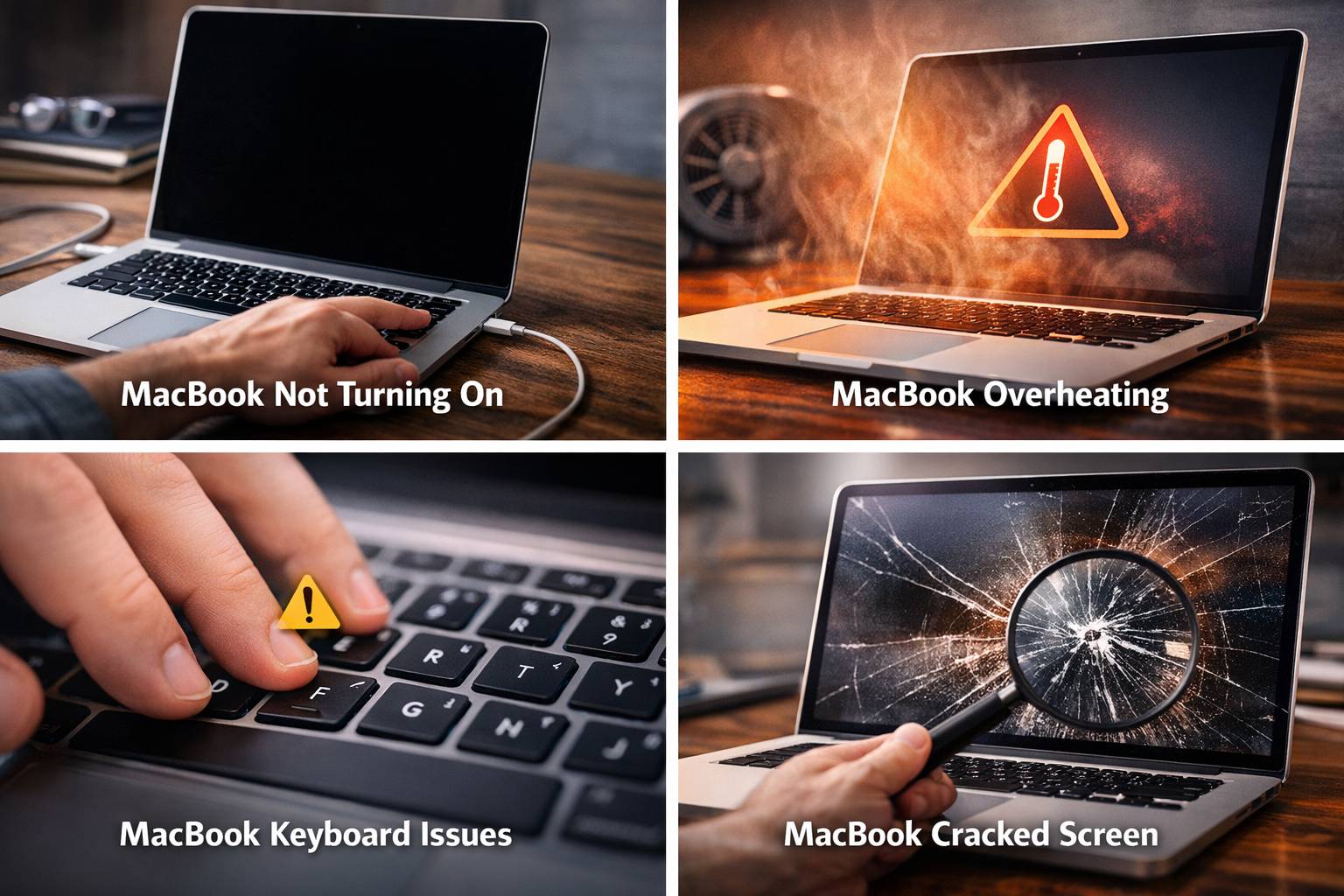
Common MacBook Problems and How to Fix Them
Common MacBook Problems and How to Fix Them
A MacBook is known for its performance, reliability, and sleek design. However, like any laptop, MacBooks can develop problems over time due to heavy use, software errors, or hardware wear. Whether you use a MacBook for work, school, or creative projects, understanding common issues can help you troubleshoot problems quickly and keep your device functioning properly.
Below are some of the most common MacBook problems and practical ways to fix them.
1. MacBook Not Turning On
One of the most serious issues users face is when their MacBook refuses to power on.
Possible Causes
- Dead or faulty battery
- Damaged charging port
- Logic board issues
- Power adapter failure
Possible Solutions
First, check the charger and power cable to ensure they are working properly. Try using a different outlet or charger if available.
If the MacBook still does not power on, performing an SMC reset (System Management Controller) may help resolve power-related issues. If the problem continues, professional diagnostics may be needed to check internal components.
2. MacBook Battery Draining Quickly
Battery problems are common after years of usage.
Signs of Battery Problems
- Battery draining very fast
- MacBook shutting down unexpectedly
- “Service Battery” warning message
Solutions
Check battery health in System Settings → Battery → Battery Health. Lower screen brightness and close unused applications to reduce power consumption.
If the battery capacity has dropped significantly, battery replacement may be necessary to restore normal performance.
3. MacBook Running Slow
Slow performance is one of the most frequent complaints among MacBook users.
Possible Causes
- Too many background applications
- Full storage drive
- Outdated macOS software
- Insufficient RAM
Solutions
Start by clearing unused files and applications to free up storage space. Updating macOS and restarting the system can also improve performance.
Upgrading storage or memory (if supported) can dramatically improve system speed.
4. MacBook Overheating
MacBooks generate heat while running heavy applications like video editing software or games. However, excessive heat can damage internal components.
Signs of Overheating
- Loud fan noise
- System slowdown
- MacBook becoming very hot
Solutions
Ensure proper ventilation and avoid using the MacBook on soft surfaces like beds or couches. Cleaning dust from internal fans can also improve airflow.
Regular maintenance helps prevent overheating problems and improves performance.
5. Keyboard Not Working Properly
Some MacBook users experience keyboard issues such as unresponsive keys or repeating characters.
Possible Causes
- Dust or debris under keys
- Liquid damage
- Keyboard hardware malfunction
Solutions
Use compressed air to remove dust particles from the keyboard. Restarting the MacBook can sometimes resolve temporary software glitches.
If certain keys remain unresponsive, the keyboard may require professional service.
6. Trackpad Not Responding
The trackpad is an essential part of the MacBook experience, and problems with it can affect productivity.
Common Issues
- Trackpad not clicking
- Cursor not moving
- Multi-touch gestures not working
Solutions
Restart the MacBook and check Trackpad settings in System Preferences. Resetting the SMC may also resolve trackpad problems.
If the issue persists, it may indicate hardware failure or battery swelling affecting the trackpad.
7. MacBook Screen Problems
Display issues can seriously affect usability.
Common Screen Problems
- Flickering display
- Black screen
- Dead pixels
- Backlight issues
Solutions
Restart the MacBook and reset NVRAM/PRAM, which controls display settings. If the display remains black or distorted, the screen or internal display cable may need professional service.
Preventing MacBook Problems
Taking care of your MacBook can help avoid many common issues.
Tips to Keep Your MacBook Healthy
- Keep macOS updated
- Avoid overcharging the battery
- Clean vents and keyboard regularly
- Use protective cases and sleeves
- Avoid liquid exposure
Regular maintenance can extend the life of your device and maintain optimal performance.
Professional MacBook Service
If troubleshooting does not resolve the problem, professional technicians can diagnose hardware failures such as battery issues, screen problems, charging port faults, or logic board damage. Expert diagnostics ensure the correct solution is applied, helping restore your MacBook’s performance quickly.


No comments yet. Be the first to share your thoughts!